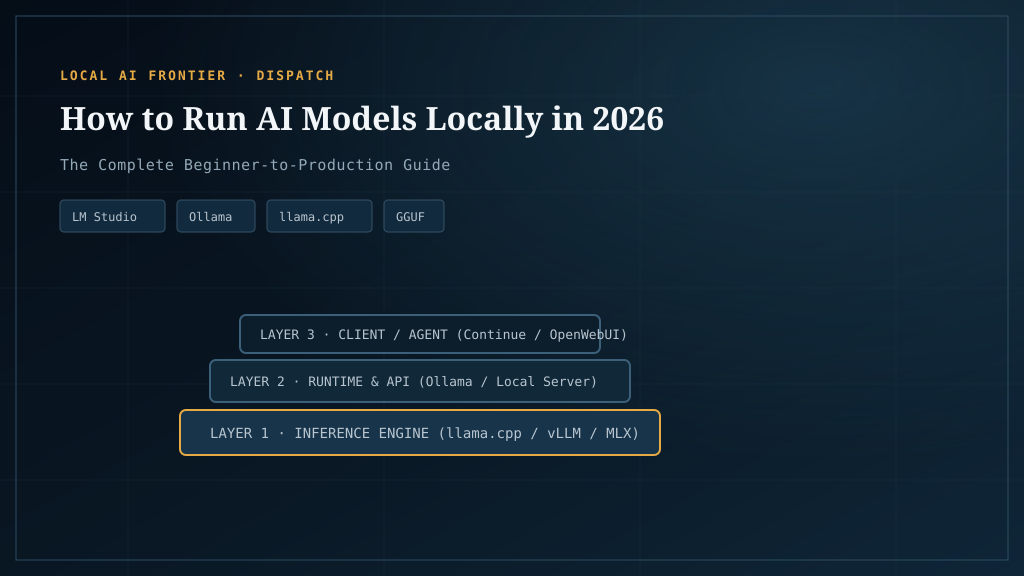
Running an AI model locally in 2026 is no longer a hobbyist curiosity — it’s a practical, measurable choice. The models are good enough, the hardware is fast enough, and the tooling has stopped being hostile. What hasn’t changed is that most setup guides give you a recipe without ever measuring whether it actually works. They tell you to install something, load a model, and hope.
This guide is different in one way: every recommendation below is tied to a measured result from the lab. When I say a backend is faster, it’s because we ran the same sha256-verified model file on real consumer hardware and reported the tok/s. When I say a GPU tier fits a model, it’s because Model Fit and a benchmark confirm it. Follow the [e] links for the receipts.
If you’re completely new, the fastest path is Start Here — a 5-step walkthrough. This article is the expanded, reference version of that path.
The four decisions
Running a local LLM comes down to four choices, in this order:
- What hardware will run it (the gating constraint — VRAM).
- What backend (the compute layer: CUDA, Vulkan, ROCm, SYCL).
- What quantization (how compressed the model is — the VRAM/speed/quality dial).
- What runtime (the app you actually launch: llama.cpp, Ollama, LM Studio, vLLM).
Get these right and everything else is preference. Get them wrong and you’ll blame the model for a configuration problem. Let’s take them one at a time.
Step 1: Know your VRAM ceiling
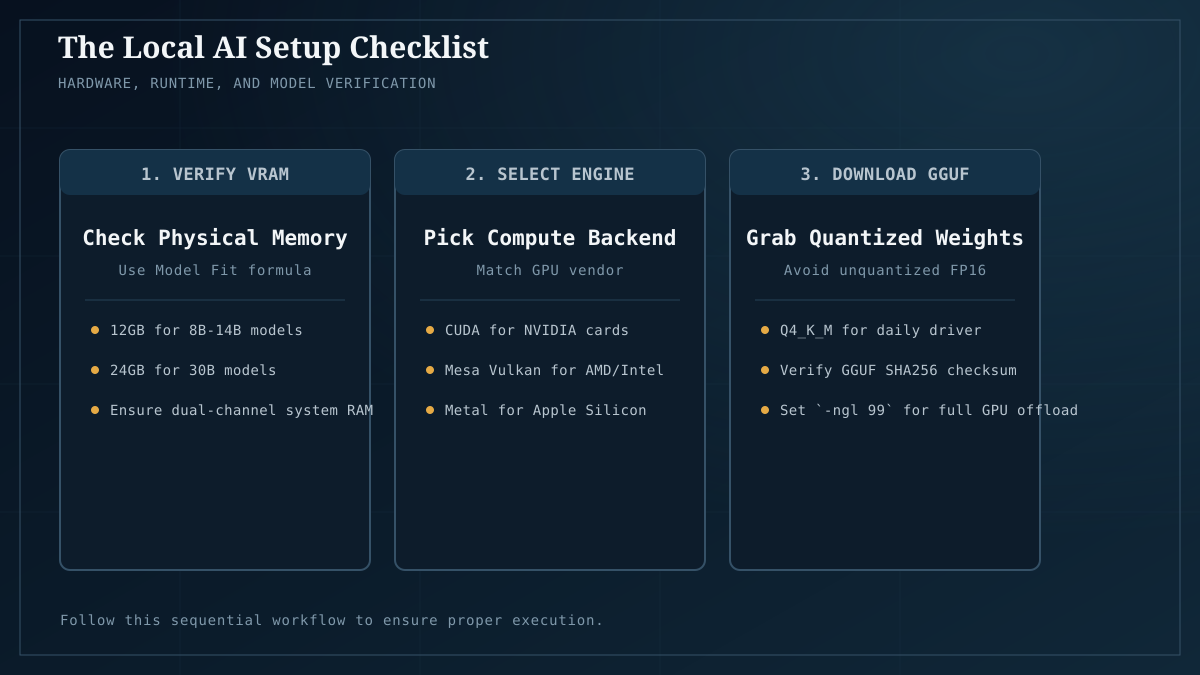
Everything starts here. VRAM (video RAM on your GPU) is the single number that decides which models you can run. Not your CPU, not your system RAM, not the model’s parameter count in isolation — VRAM.
The quick tiers at Q4_K_M (the sensible default quant, explained in Step 3):
- 8GB — 7B models only. Usable but you’ll outgrow it.
- 12GB — 7B–13B comfortably; 30B is tight.
- 16–24GB — the sweet spot. 30B daily-driver territory.
- 48GB+ (dual GPU) — 70B at Q4 without compromise.
Don’t know what you need? Use Model Fit: enter the model size, quant, and context, and it estimates whether it fits your card. The VRAM guide explains the math. If you’re buying hardware, the GPU buyer’s guide ranks cards by measured value, not spec sheets.
The 8GB trap: buying an 8GB card for local AI in 2026 means you can only ever run 7B models at Q4. 12GB is the real floor. Read the buyer’s guide before you spend.
Step 2: Pick the right backend for your GPU
This is where most people slow themselves down without realizing it. The backend is the compute layer between the model and your GPU, and the right one depends entirely on your vendor.
NVIDIA → CUDA. No debate. CUDA is the mature ecosystem, the speed leader, and the default every runtime targets. Our head-to-head shows ~35% faster generation than Arc Vulkan at the same 24GB tier. If you have NVIDIA, you’re done with this step.
AMD (RDNA3/4 consumer cards) → Vulkan first, ROCm second. ROCm is theoretically the AMD-native fast path, but on consumer RX cards it’s finicky — supported-SKU lists lag and dependencies break. In practice, llama.cpp’s Vulkan backend is the more consistent choice right now. Our backend shootout measured this directly.
Intel Arc Battlemage (B-series) → Vulkan ONLY. This is a hard rule, not a preference: SYCL produces garbage output on Battlemage (BMG G21). It’s a known issue. We will not publish SYCL numbers for Arc B-series. Use Vulkan via Mesa ANV. The backend decision guide has the full flowchart.
Intel Arc Alchemist (older) → Vulkan or SYCL. Either works. Vulkan is still the safer bet for consistency.
The practical takeaway: if your local LLM feels slow and you’re on AMD or Intel, check your backend before blaming the model. It’s the most common misconfiguration in r/LocalLLaMA threads.
Step 3: Choose a quantization
A model’s raw form (FP16/BF16) is too big for almost all consumer hardware — a 30B at FP16 needs ~60GB. Quantization compresses it. The dial trades a little quality for a lot of VRAM and speed.
Standard GGUF tiers, with what they mean for a 30B model:
- Q4_K_M (~0.55 bytes/param, ~16.5GB) — the default. Best speed/quality balance. Start here.
- Q6_K (~0.75 bytes/param, ~22.5GB) — quality near Q8, speed near Q4. The sweet spot if you have the VRAM.
- Q8_0 (~1.0 bytes/param, ~30GB) — reference quality, barely fits 24GB, no context room.
- Q3_K_M / Q2_K — visibly degraded. Use only when VRAM forces it.
The key finding from our quantization sweep: the quality loss from Q4 to Q6 is smaller than people fear — Q6 recovers ~3 points on HumanEval pass@1 while staying ~38% faster than Q8. For most people, Q4_K_M if VRAM is tight, Q6_K if you have headroom. The full reasoning is in the quantization guide.
Heuristic: If it fits comfortably, run Q6_K. If VRAM is tight, Q4_K_M. Reach for Q8_0 only with headroom to spare.
Step 4: Pick a runtime
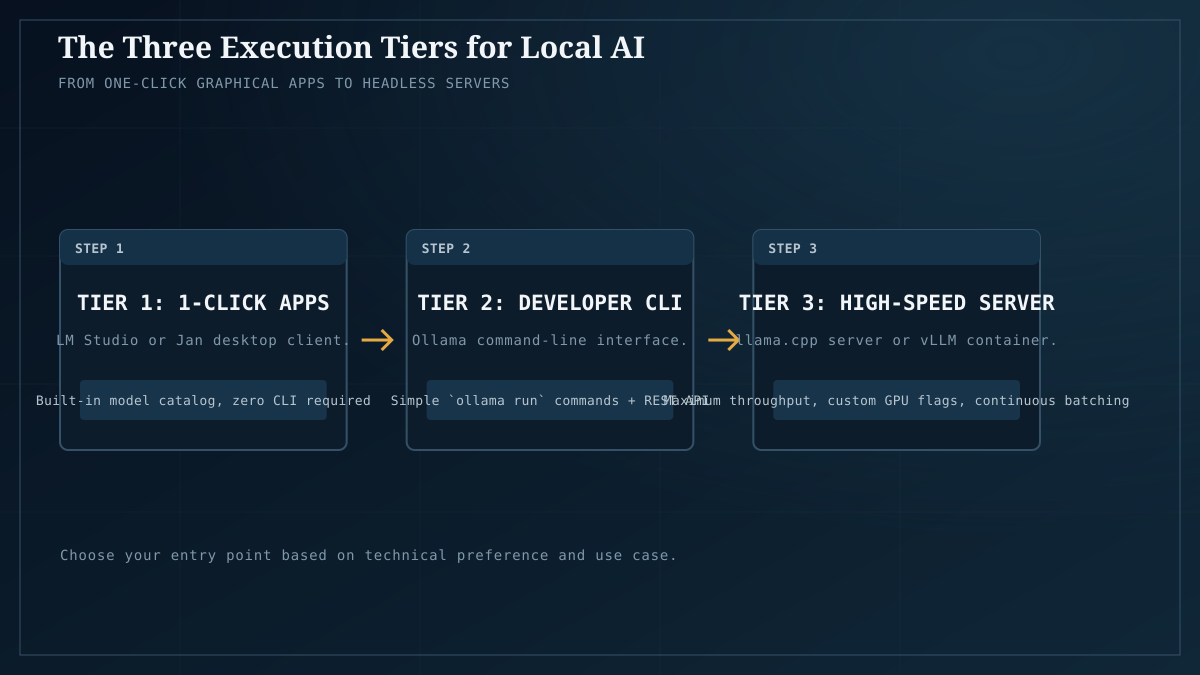
The runtime is the application you launch. For local LLMs in 2026, four matter:
- llama.cpp — the reference implementation. Command-line, no abstraction, the thing everything else wraps. Use this for maximum control and for Vulkan on AMD/Intel. What we benchmark against.
- Ollama — the friendliest entry point. One command to pull and run a model. In our Ornith-1.0-35B shootout it actually won at 78.3 tok/s. Great default for most people.
- LM Studio — GUI-first, good for people who don’t want a terminal. Model browser, chat interface, OpenAI-compatible server.
- vLLM — high-throughput serving, aimed at serving many concurrent requests. Overkill for single-user local; relevant if you’re building a home server for the household.
For a first setup: Ollama if you want it to “just work,” llama.cpp if you want to match our benchmark numbers exactly, LM Studio if you want a GUI.
Step 5: Put it together — a worked example
Here’s a concrete, measured setup: running Qwen3-Coder-30B-A3B at Q4_K_M on a 24GB card.
- Hardware: a 24GB card (Arc B60 Pro, RX 7900 XTX, or RTX 4090 — see builds).
- Backend: CUDA (NVIDIA), Vulkan (AMD/Intel Arc B-series).
- Quant: Q4_K_M → ~16.5GB weights, ~18GB total with 8K context.
- Runtime:
ollama run qwen3-coder:30b-a3b-q4_K_Mor the equivalent llama.cpp invocation.
Measured result on Intel Arc B60 Pro (Vulkan): 38.6 tok/s generation, 740ms TTFT, 18.1GB VRAM e. On dual RTX 5070 (CUDA): 172 tok/s, 19GB e. That gap is the backend/hardware decision playing out in real numbers — not a model quality difference.
Want it smaller and faster? Drop to LFM2.5-8B-A1B — ~270 tok/s in under 7GB. That’s a budget-card monster.
Beyond chat: what else you can run locally
LLMs are the headline, but local AI in 2026 covers a lot more:
- Images: run Flux / Stable Diffusion locally and a ComfyUI beginner guide.
- Video: local video generation (Wan, Hunyuan, CogVideoX).
- Voice: the best local TTS models and an offline voice assistant.
- Private RAG: a private RAG knowledge base over your own documents — the killer privacy use case.
- Automation: batch-process documents locally and run a home AI server.
The privacy case (why this matters)
Every model you run locally computes on hardware you control. That’s not a feature — it’s a structural property. A cloud API can change its data policy, log your prompts, or rate-limit you; a model running on your GPU cannot exfiltrate a prompt because the network path doesn’t exist. For anything sensitive — legal, medical, business-confidential, or just personal — that’s the entire argument. Read why local AI is better for privacy for the full treatment.
Common pitfalls (and how to avoid them)
- Wrong backend → slow model. AMD/Intel on the default runtime often falls back to CPU. Verify your GPU is actually being used (watch VRAM in
nvidia-smi/nvtop/ Intel’s tool). - Too-high quant for your VRAM. A 30B at Q8 in 24GB leaves no context room and may silently offload to RAM, killing speed. Drop to Q4_K_M.
- Ignoring context cost. Context length eats VRAM via the KV cache, separately from the weights. A model that “fits” at 2K context may not at 32K. Model Fit accounts for this.
- No cooling/PSU planning. Local AI sustains full load for hours, not seconds like a game. Undersized PSUs and bad cooling cause throttling and crashes. The build recipes spec this correctly.
Where to go next
You now have the four decisions and a worked example. The fast tracks:
- I want to buy hardware → GPU buyer’s guide + build recipes.
- I want the best model for my use case → best local LLMs 2026, ranked by measured performance.
- I want the 5-minute path → Start Here.
- I want to go deep → the methodology and the full benchmark index.
Local AI in 2026 is genuinely competitive with the cloud for a large and growing set of workloads — and the only way to know if it’s competitive for yours is to measure it. That’s the whole point.