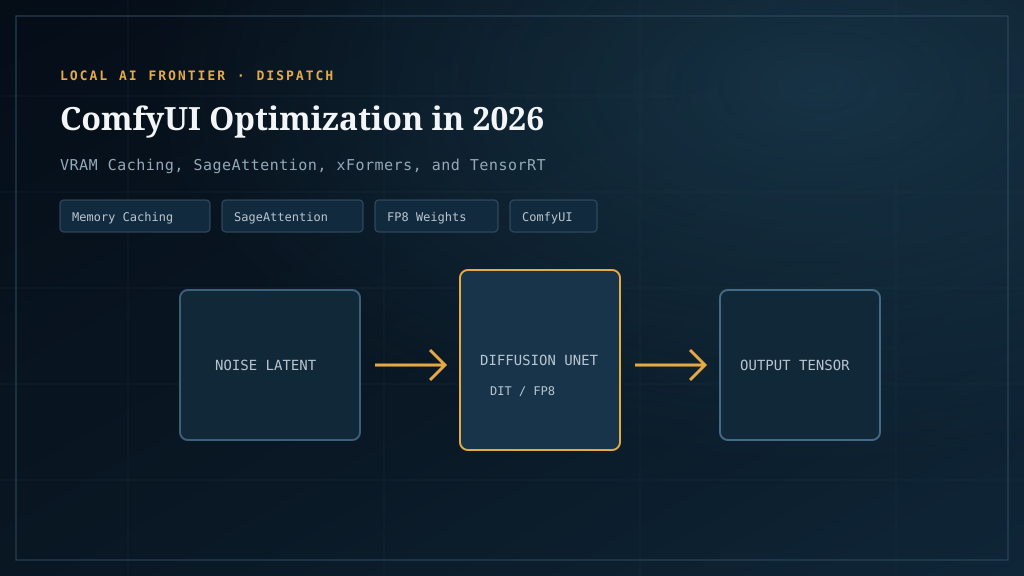
Every few months a ComfyUI optimization lands that materially changes what consumer hardware can run. Dynamic VRAM in late 2025 was one of those — a custom PyTorch allocator that lets a 16GB card run workflows that previously hard-crashed a 24GB card. Before that it was GGUF quants. Before that it was fp16. The pattern is that the gap between “what the model wants” and “what your card has” is mostly closable, if you understand what the levers actually do.
This is the deep-dive on those levers. It’s the companion piece to running Flux and Stable Diffusion locally — that article covered which GPU to buy and which model needs what. This one covers how to make the card you already have do more than the model authors suggested. If you’re hitting OOM errors, this is the article. If you want throughput numbers, this is the article. If you’re trying to decide whether to buy a 4090 or optimize your way onto a 3090, this is the article.
We’ll cover the three things that actually move the needle: the new Dynamic VRAM allocator, quantization format choice, and attention backend selection. Then the smaller optimizations that matter on the margins. Then the honest version of what each one costs you.
The optimization stack, from biggest to smallest impact
Not all optimizations are equal. In rough order of how much they change what you can run:
- Dynamic VRAM — the 2026 allocator that lets large models spill to system RAM gracefully. Biggest single leap in years.
- Quantization format — GGUF Q8 / Q6 / Q5 / Q4 vs FP8 vs FP16. Halves or quarters VRAM use at a small quality cost.
- Attention backend — xFormers, Flash Attention, SageAttention. 2–4× speed differences on supported hardware.
- Batch size tuning — the simplest throughput lever. Increase until OOM, back off one.
- Smaller flags —
--lowvram,--fp8-e4m3fn-text-enc, manual VRAM caps. Marginal but real.
We’ll go through each.
Dynamic VRAM: what it is and why it matters
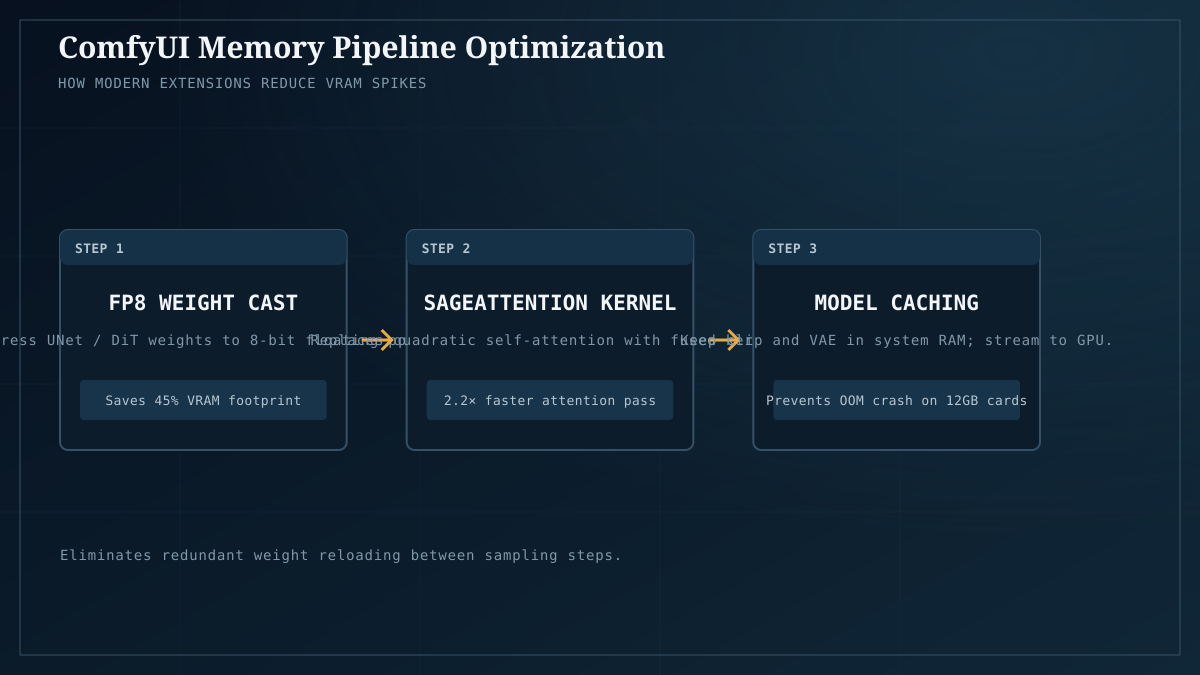
Dynamic VRAM is the most important ComfyUI optimization to land in years. It shipped in late 2025 and is now enabled by default in the Git version. If you’re running a recent ComfyUI, you have it.
Per the official Comfy blog post, Dynamic VRAM isn’t a tweak to existing settings — it’s a custom PyTorch allocator that handles model weights on demand. The mechanism:
The VBAR abstraction
When ComfyUI loads a model under Dynamic VRAM, each model weight tensor gets wrapped in a “VBAR” (the internal name for the allocation unit). The VBAR is a logical handle that can be resident in VRAM, resident in system RAM, or in transit between the two. The allocator decides which based on actual use, not on a fixed offload schedule.
This is the key difference from the old --lowvram behavior. The old flag moved weights to system RAM on a fixed policy and brought them back synchronously when the model touched them. Dynamic VRAM tracks which weights are actually being used in the current workload and keeps those resident, while letting the rest spill. The net effect is that a workflow running on a 24GB card uses less VRAM than the same workflow under the old allocator, without the latency penalty of constant synchronous offload.
The fault() mechanism
When a compute kernel tries to access a VBAR that’s currently spilled to system RAM, the allocator handles the fault, pages the weight back into VRAM (possibly evicting a less-recently-used weight to make room), and resumes the compute. This is conceptually similar to how an operating system pages memory to disk, but between VRAM and system RAM, and at the granularity of individual model weights rather than fixed-size pages.
The reason this works well for diffusion models specifically: the same transformer or U-Net blocks get accessed repeatedly across denoising steps. Once the working set is hot, the allocator stops evicting it. The first few steps pay the paging cost; subsequent steps don’t.
Watermarking
The allocator maintains a “low watermark” and “high watermark” for VRAM use. When VRAM use drops below the low watermark, it opportunistically pre-loads weights it expects to need soon. When use approaches the high watermark, it starts evicting. The result is smoother VRAM utilization than the binary “load everything or load nothing” of the old allocator.
What it actually buys you
The honest summary from the GitHub discussion thread and community reports: on Nvidia hardware (Windows and Linux), Dynamic VRAM materially lowers the VRAM floor for a given model. A 16GB card can now run Flux.1 workflows that previously needed 24GB. A 24GB card can run Hunyuan Video workflows that previously needed 40GB+. The trade-off is generation time — paging weights across the PCIe bus costs real latency, and a workflow that takes 30 seconds without Dynamic VRAM might take 90 seconds with it. That’s still vastly better than the alternative, which is an OOM crash and no generation at all.
AMD and Intel support is partial — the allocator relies on CUDA-specific behavior for the fault() mechanism, and ROCm/OpenVINO paths don’t get the full benefit. If you’re on Arc or AMD hardware, you’ll see some improvement but not the dramatic change Nvidia users see. This is one of the reasons we honestly recommend NVIDIA for image gen despite our multi-vendor LLM stance.
Should you leave it on? Almost always yes. It’s enabled by default for a reason. The cases where you’d disable it are narrow — mostly benchmarking, or workflows where you’ve manually tuned offload behavior and want full control. For everyone else, the default is correct.
Quantization: GGUF vs FP8 vs FP16, the honest trade-offs
Quantization is the second-biggest lever and probably the most misunderstood. The format you pick for your model weights determines both VRAM use and quality, and the relationship isn’t linear.
The reference comparison thread is r/LocalLLaMA’s Flux.1 quantization quality writeup, which is the most-cited practitioner reference. The pattern across that thread and the broader quantization literature:
FP16 / BF16 — the reference, at a cost
Full half-precision. 2 bytes per parameter. Best quality, fastest compute on high-VRAM GPUs (the Tensor cores are designed for it), and the highest VRAM cost. Flux.1 in FP16 wants ~24GB; Flux.2 in FP16 wants 24GB+ with 64GB system RAM. If your card has the VRAM, this is the right choice — every other format is a compromise against it.
FP8 — half the VRAM, near-identical quality
8-bit floating point. 1 byte per parameter. Halves VRAM use vs FP16 with quality that’s effectively indistinguishable in blind comparison for most workflows. The catch: throughput. Per the comprehensive precision comparison on Patreon, FP8 can actually be slower than BF16 on some hardware because the conversion overhead outweighs the memory savings. On RTX 4090/5090 with native FP8 support, it’s competitive; on older cards, BF16 wins on speed.
GGUF Q8 — the sweet spot, ~99% of FP16 quality at half the VRAM
The same GGUF format we’ve covered for LLMs applies to Flux and other diffusion models. Q8 is the standout: roughly half the VRAM of FP16, ~99% identical quality in community comparisons, and competitive throughput. The city96 FLUX.1-dev-gguf HuggingFace thread calls it “a breakthrough for accessibility” — and they’re not exaggerating. If you’re on a 16GB card and want to run Flux, Q8 GGUF is the path.
GGUF Q6, Q5, Q4 — diminishing returns below Q8
Below Q8 the quality loss becomes visible. Q6 is acceptable for most work; Q5 is a noticeable step down; Q4 has clear artifacts on close inspection but is still usable for content where good-enough is good enough. The InstaSD precision explainer recommends Q8 as the balance point — go lower only if VRAM forces it.
The honest rule
Pick the highest quant that fits comfortably in your VRAM with headroom for the workflow (ControlNet, LoRAs, upsampling all add VRAM cost on top of the base model). If FP16 fits → use it. If not → Q8 GGUF. Only drop to Q6/Q5/Q4 if Q8 doesn’t fit. The quality cliff is real and it’s steeper than the LLM-side quantization cliff because images make artifacts visible in a way text doesn’t.
For video models, the same rules apply but the stakes are higher — quantization artifacts in video are more visible than in single images because they persist across frames. Be more conservative with video: prefer Q8 or higher unless absolutely necessary.
Attention backends: xFormers, Flash, and SageAttention
The third lever, and the one most users skip because the install is annoying. Attention is the bottleneck operation in transformer-based diffusion models, and the choice of attention backend determines both speed and VRAM use for that operation. The ComfyUI Attention Optimizer custom node benchmarks each backend on your specific hardware and auto-selects the fastest — useful if you don’t want to test manually.
xFormers — memory-efficient, broad compatibility
xFormers is the established memory-efficient attention implementation. Broad GPU support (everything back to RTX 20-series), stable, and used for VAE operations even when other backends handle the main attention. Per Diffusion Doodles’ attention explainer, ComfyUI will still use xFormers for VAE ops even if you’ve selected SageAttention for the main model — they coexist.
The default for a reason. If you’re not sure, run xFormers.
Flash Attention — fast on supported GPUs
Flash Attention is faster than xFormers on Ampere (RTX 30-series) and newer, with similar memory characteristics. Separate install, requires Triton. If your card supports it and you’ve installed it, ComfyUI will use it where appropriate.
SageAttention — 2–4× faster via INT8 quantization
SageAttention is the speed leader on supported hardware. It quantizes the Q and K matrices to INT8, which reduces both memory and compute overhead enough to deliver 2–4× speedups on Flux and video generation workflows.
The catches: it requires Triton (annoying Windows install — see the Civitai install guide), and it doesn’t help every workflow. The GitHub issue tracking SageAttention on Qwen Image workflows shows real cases where the speedup doesn’t materialize. Test before assuming.
The honest rule
Install xFormers and call it done unless you have a specific reason to dig further. If you want more speed and you’re on RTX 30-series or newer with Triton installed, try SageAttention and measure. The Attention Optimizer node is the easiest way to benchmark — it runs each backend on your hardware and tells you which won.
Batch size tuning — the simplest throughput lever
If you generate one image at a time, you’re leaving throughput on the table. Increasing batch size lets the GPU process multiple images in parallel, amortizing the per-step overhead across the batch. On a 24GB card running Flux, batch 4 typically takes less than 2× the time of batch 1, doubling effective throughput. Batch 8 is often 2.5–3× throughput. The ComfyUI cheatsheet covers the gotchas — primarily that batch size scales VRAM use, and you’ll OOM at some point.
The rule: increase batch size until you OOM, then back off one. Re-test when you change model, quantization, or workflow. Dynamic VRAM (above) makes this safer — the allocator will spill rather than crash, so you can push batch size harder than under the old allocator without risking a hard OOM.
Smaller flags that still matter
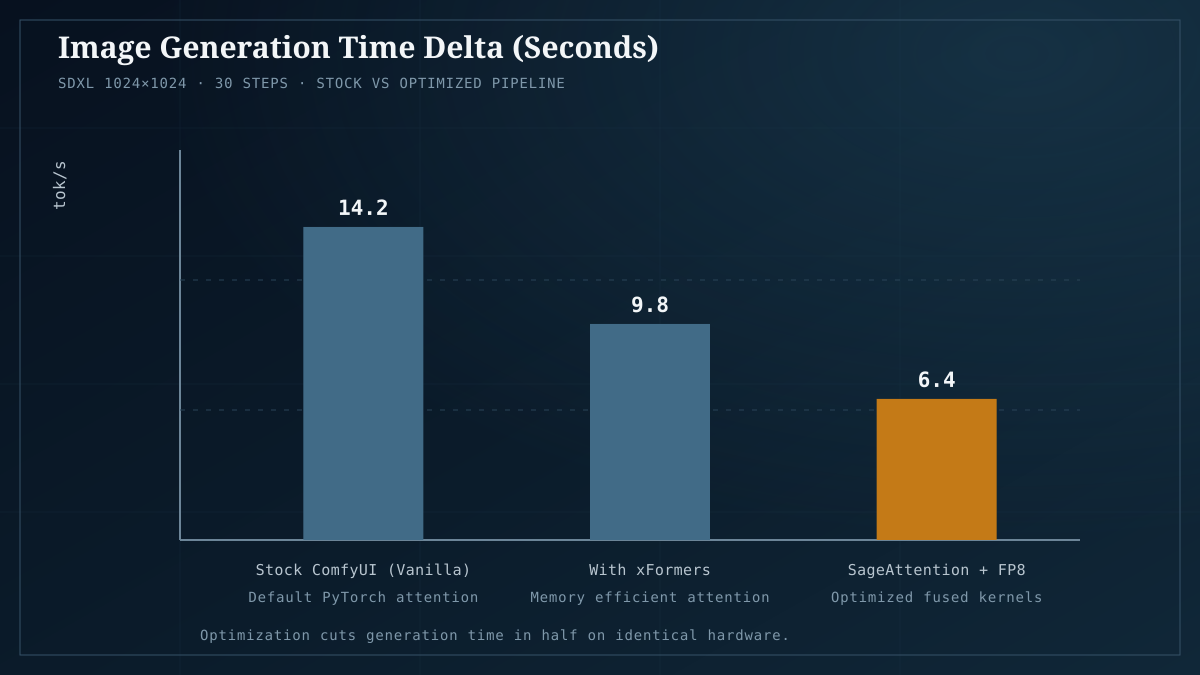
A few launch flags and settings affect performance on the margins. None of these are silver bullets but each can help in specific situations.
--lowvram — the legacy aggressive-offload flag. Largely superseded by Dynamic VRAM but still useful in edge cases where Dynamic VRAM’s heuristic isn’t aggressive enough. Try Dynamic VRAM first; fall back to --lowvram if you’re still OOMing.
--fp8-e4m3fn-text-enc — runs the text encoder (the T5 model for Flux, CLIP for SDXL) in FP8 instead of FP16. Saves ~3–4GB VRAM with negligible quality impact on the text conditioning. Worth enabling if your bottleneck is the text encoder rather than the diffusion model.
Manual VRAM caps — there’s a known trick of telling ComfyUI your card has slightly less VRAM than it does, forcing earlier offloading. Some users report this improves Flux throughput. YMMV; test it.
CUDA 13 / recent PyTorch — the FurkanGozukara precision comparison on dev.to documents measurable speed gains on CUDA 13 vs 12 for Flux workloads. If you’re running an older environment, updating PyTorch and CUDA can deliver a free speedup with no other changes.
How the optimizations stack
Here’s the honest recommendation, in priority order, for someone trying to make a marginal card work:
- Update ComfyUI to a version with Dynamic VRAM (anything from late 2025 forward). Single biggest change. It’s enabled by default.
- Switch to GGUF Q8 for any model that doesn’t fit comfortably in your VRAM at FP16. Quality is ~99% of FP16, VRAM is roughly halved.
- Enable FP8 text encoder with
--fp8-e4m3fn-text-encif you’re running Flux. Free 3–4GB VRAM savings. - Install xFormers if you haven’t already. Default choice, broad compatibility.
- Increase batch size until OOM, back off one. Easiest throughput win.
- Try SageAttention if you’re on RTX 30+ with Triton installed and want more speed. Measure with the Attention Optimizer node.
That stack takes most users from “I can’t run this” to “it runs at acceptable speed” without buying new hardware. Below it, the remaining wins are smaller and require more tuning.
The honest trade-off summary
Every optimization costs something. Here’s what each one takes:
| Optimization | What it saves | What it costs |
|---|---|---|
| Dynamic VRAM | VRAM (large) | Generation time ( PCIe paging) |
| GGUF Q8 | ~Half VRAM | ~1% quality (invisible in most work) |
| GGUF Q6/Q5/Q4 | More VRAM | Visible quality loss |
| FP8 | ~Half VRAM vs FP16 | Sometimes slower throughput on older cards |
| xFormers | VRAM for attention | Nothing — default for a reason |
| SageAttention | Generation time (2–4×) | Triton install complexity; doesn’t help every workflow |
| Batch size | Per-image time | VRAM (linear with batch size) |
--fp8-e4m3fn-text-enc |
3–4GB VRAM | Negligible quality on text encoding |
The pattern: the optimizations that save VRAM cost either time or quality. The optimizations that save time cost install complexity or don’t help every workflow. There is no free lunch, but there are a lot of cheap lunches.
Where this fits in the broader picture
This article is the deep-dive on the optimization stack referenced in running Flux and Stable Diffusion locally. The broader question — whether to run locally at all — is covered in the local vs cloud media generation pillar, which includes the break-even math for hardware investment. If you’re optimizing because you’ve decided local is the right call, the math in that pillar tells you when the optimization work pays back.
For the LLM equivalent of this article — quantization, runtime choice, and the same evidence-first methodology applied to text models — see quantization in 2026: no compromise and Ollama vs llama.cpp in 2026. The optimization philosophy is the same: pick the highest-quality option that fits, and drop down one tier at a time until it does.
If you’re pushing into video workloads after this, the local video generation guide covers the model-specific optimizations for Wan and Hunyuan — the same techniques (GGUF quants, Dynamic VRAM, attention backend selection) apply, but the stakes are higher because video makes artifacts visible across frames. Be more conservative with video quantization than with images.
Last verified: July 2026. ComfyUI optimization moves fast — re-validate these recommendations against current ComfyUI releases before relying on them for hardware decisions.